
ChatGPT Business Hub is a new tool from OpenAI that lets you claim your business inside ChatGPT. It went live in beta on 10 November 2026, as part of OpenAI’s Businesses in ChatGPT programme, and it is free to use for now.
Here is why it matters. ChatGPT may already show a listing for your business. If you have not claimed it, someone else could. On launch day, Barry Schwartz of Search Engine Roundtable said he was nervous about people hijacking businesses on the platform.
This guide shows you how to claim and verify your business. It also covers what you can change once you are in, how to read the numbers, and what claiming will not do. That way, you know what to expect before you start.
Quick answer: To claim your business, sign in to ChatGPT and open Business Hub. Search for your business, then verify it by phone, email, DNS record or Shopify. Finally, pass OpenAI’s Persona ID check to unlock editing and Insights.
What Is ChatGPT Business Hub?
Business Hub is the dashboard where a business claims its profile in ChatGPT. You can edit your details there and see how often ChatGPT mentions you.
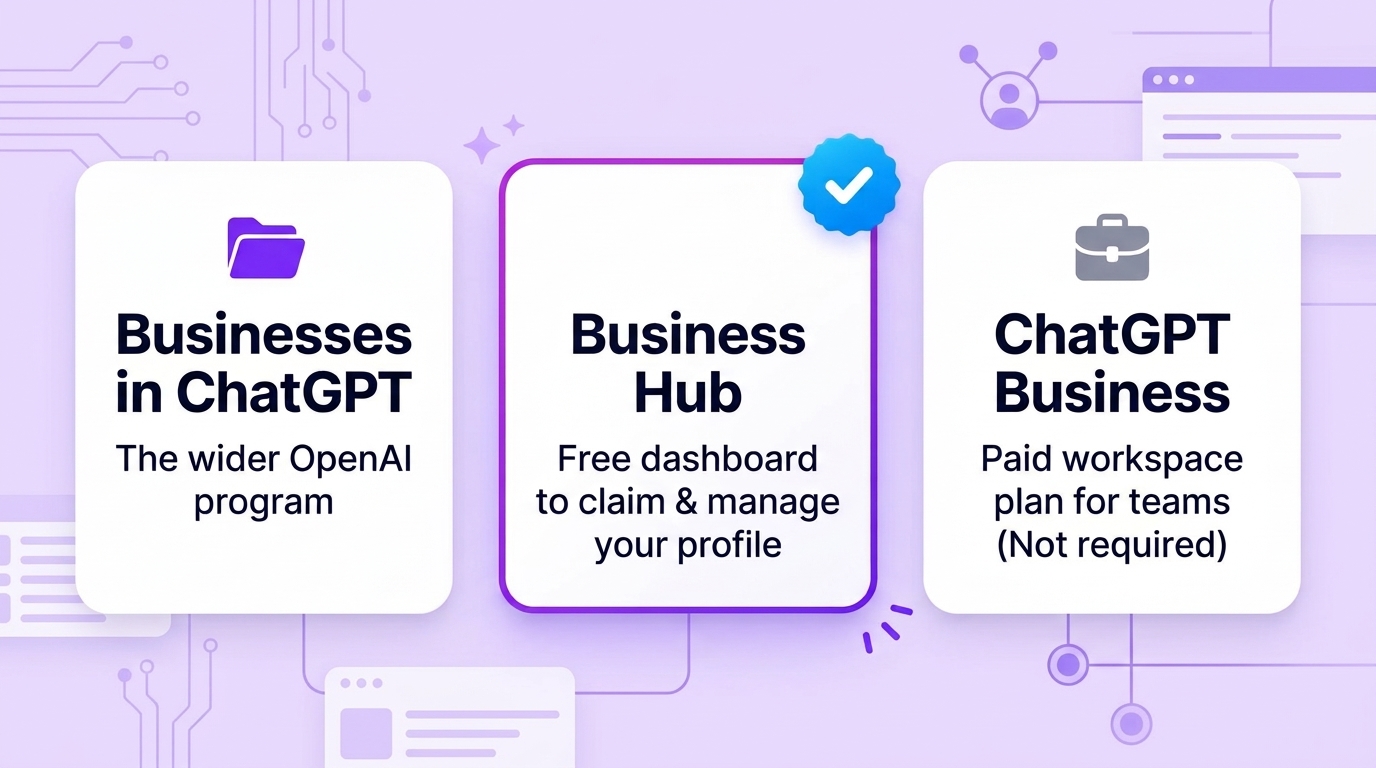
The names can be confusing, so here is a quick guide:
- Businesses in ChatGPT is the wider programme from OpenAI.
- Business Hub is the dashboard where you manage your profile.
- ChatGPT Business is a different thing. It is a paid workspace plan for teams, and you do not need it to claim your business.
If you have used Google Business Profile or Google Search Console, the idea will feel familiar. You claim a listing, keep the facts right and see some numbers. Some marketers call Business Hub a “ChatGPT Search Console”, but that is a nickname, not an official name.
There is one big difference. ChatGPT writes its own answers. You can give it correct facts, but you cannot control how it uses them. If you are new to this area, our guide to AI search optimisation explains the basics of how AI tools choose what to show.
What Are the Benefits of Claiming Your Business in ChatGPT Business Hub?
Claiming your business will not boost your rankings, but it gives you more control. You decide what ChatGPT knows about you, and you get real numbers from ChatGPT instead of guesses.
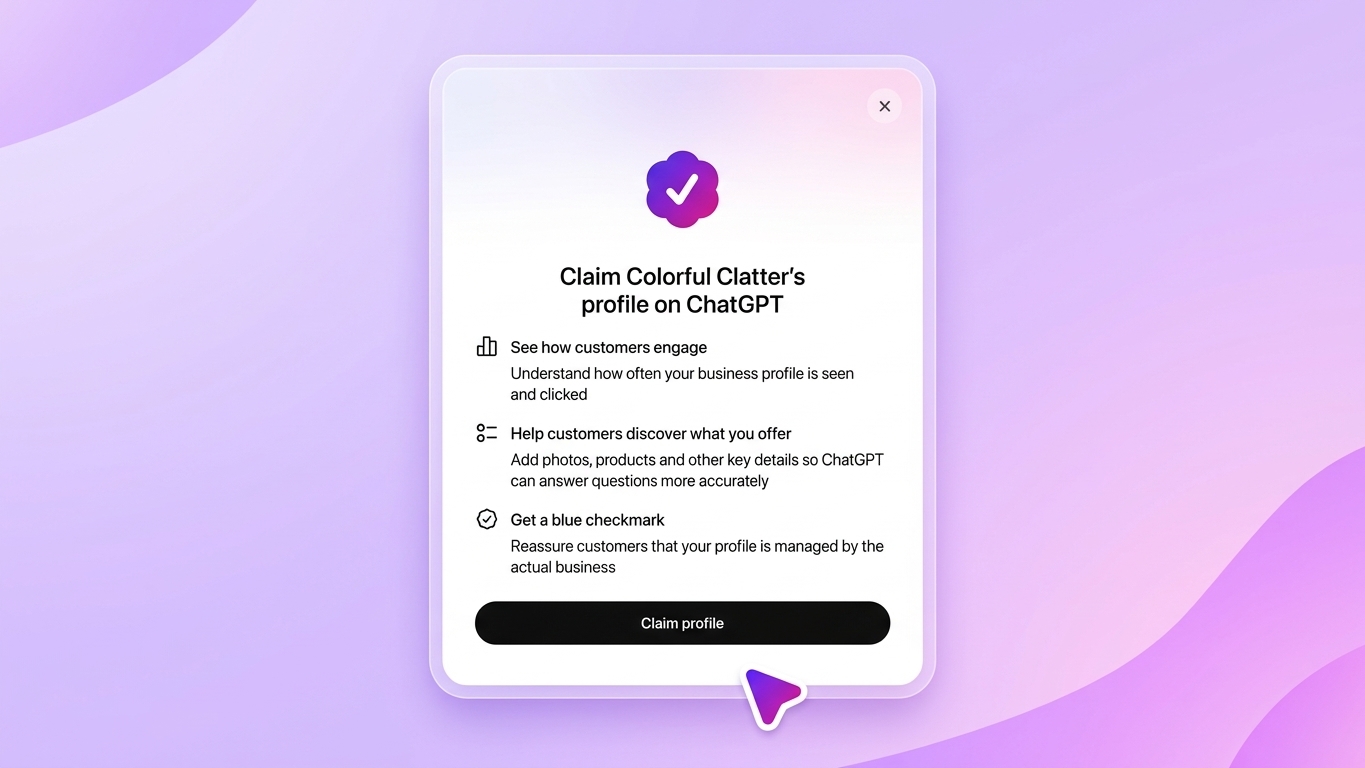
- Correct details: fix your description, logo, category and policies after OpenAI’s review.
- Less hijack risk: claiming first makes it harder for someone else to take your listing.
- First-hand data: see mentions, profile views, website clicks and discovery topics.
- Better product facts: share prices and stock levels through a product feed.
Insights also helps with content. Discovery topics show the themes linked to your business, so you can spot gaps and write pages that cover them well. It is a useful starting point.
Claiming is free for now, and a blue verified check shows people the profile belongs to the real business. Just remember that these benefits are about accuracy and insight, not extra traffic.
Who Can Claim a Business in ChatGPT?
You need to own the business or be authorised to act on its behalf. OpenAI says eligibility depends on where you are, what type of business you run and its own checks. You do not need a ChatGPT Ads account or an Enterprise plan.
Here is what is available at launch:
| Business type | What you can do |
| Online business | Claim an existing listing, or add one if it is missing |
| Local shop or restaurant | Claim an existing US listing only |
| US ecommerce or online service | Everything above, plus a Business Agent |
OpenAI has not shared a list of countries yet. If you are outside the US, the best test is to open Business Hub and search for your business.
It is free for now. OpenAI’s VP of Monetisation told Digiday that charging has not been ruled out, so treat “free” as today’s position, not a promise.
How to Claim Your Business in ChatGPT, Step by Step
The steps below follow OpenAI’s setup guide for businesses and launch-day walkthroughs from SEO publishers. Screens may look different for you.
Step 1: Find Your Business Listing
Sign in to ChatGPT. Open Business Hub from the sidebar, or go straight to chatgpt.com/business-hub.
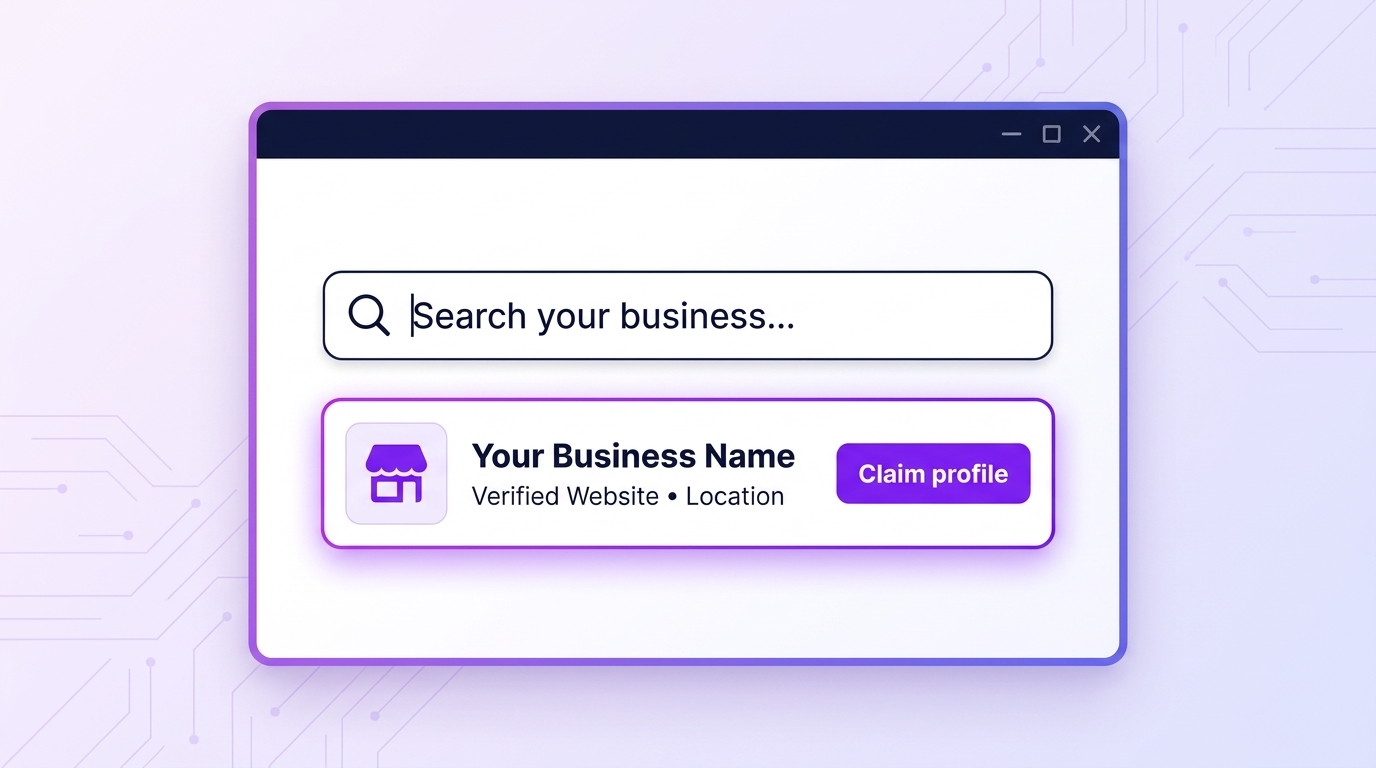
Search for your business by name. Then check the website, the name and the location. Do not claim a business with a similar name just because it appears first.
Local shops and restaurants can only claim an existing US listing for now. Online businesses may see an option to add a new listing if theirs is missing.
Step 2: Choose a Verification Method
Next, you prove you are connected to the business. Business Hub shows the methods that apply to you. There are four:
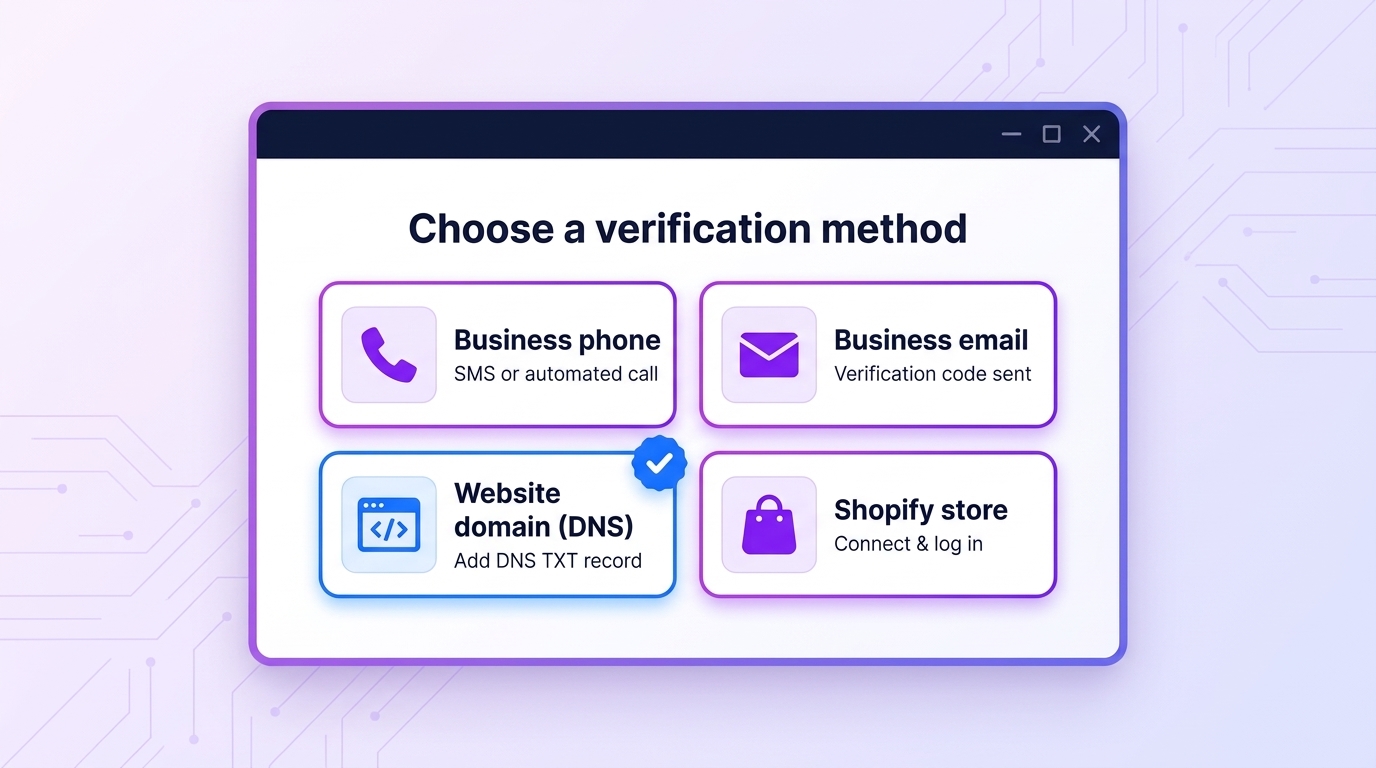
- Business phone: you get a code by text or an automated call.
- Business email: a code is sent to your business email address.
- Website domain: you add a short line of text (called a DNS TXT record) to your website’s settings, then select “Verify domain”.
- Shopify: you connect your store and log in.
One tip for the domain method. Add the new record on its own. Do not replace your existing email security records, because that can stop your email from working. DNS changes can also take a little while to show.
We suggest picking a method you control yourself. If a call centre answers your phone, or your DNS sits with an outside company, sort that out first.
Step 3: Wait for OpenAI’s Decision
OpenAI reviews your claim and sends the decision by email. It may also ask for more information.
No review time has been published, so be patient. Please do not send repeat claims while you wait. If you change your mind, a “Cancel claim” option may appear.
Step 4: Complete the Persona Identity Check
This step is easy to overlook, but it unlocks most features. After your claim is approved, OpenAI asks for a second check through a company called Persona.
You need it before you can publish edits, connect a product feed, see Insights or create a Business Agent. It may ask for:
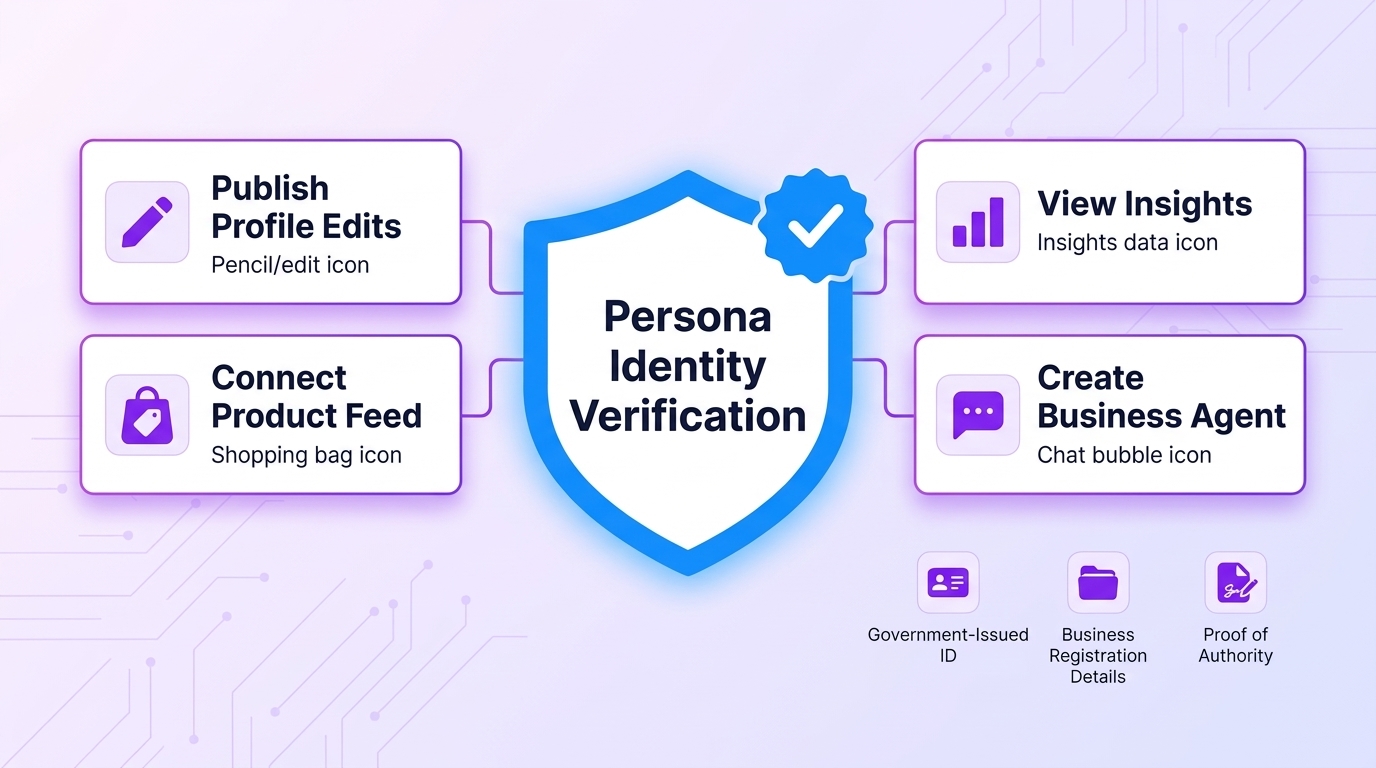
- a government-issued ID,
- your business registration details, and
- proof that you can act on behalf of the business.
Your business name, address and registration number should match official records. The blue verified check appears after Persona approves you, not when you first claim.
The owner or an authorised person at the company should perform this check themselves. If you work for an agency, never collect a client’s ID by email or keep copies in shared folders.
Step 5: Review Your Profile Before It Goes Live
If you create a new profile through Persona, approval publishes it straight away. There is no extra publish button. If you claim an existing listing, OpenAI reviews each edit before it goes live.
One thing to know before you finish: OpenAI support cannot delete or hide a profile once it is published. Only drafts can be deleted. So check your name, description, category and policies before you finish.
Giving Your Team or Agency Access
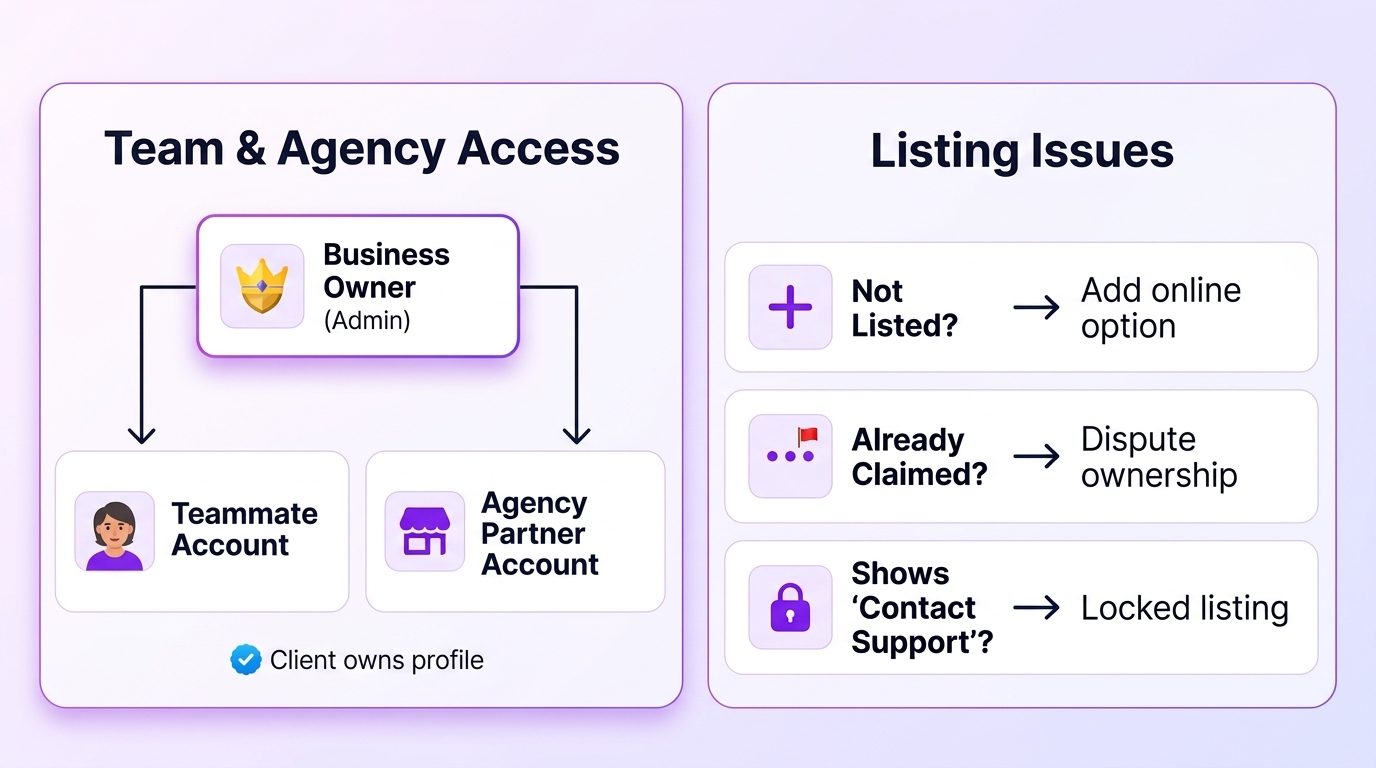
The person who claims the business becomes the admin. They can invite teammates or an agency by email. Each person signs in with their own ChatGPT account.
A few tips:
- Let the client own the profile and invite the agency, not the other way round.
- Do not forward your claim invitation to someone else.
- Some invitations may require the person to be in the same ChatGPT workspace.
- There is no single dashboard for many clients at launch. Each brand is managed separately, and claiming a parent brand does not imply ownership of its locations.
Want to keep an eye on how your business appears across AI tools? Our guide to tracking AI search visibility offers a simple way to get started.
Business Not Listed, or Already Claimed?
- Not listed: online businesses may see an option to add it. Use only the options Business Hub offers, so you do not create duplicates.
- Already claimed by someone else: open the profile, select the three-dot menu and choose “Dispute ownership”. You will need to verify through Persona.
- Shows “Contact support”: the listing is locked. Select that option to request access from OpenAI.
What You Can Edit After Claiming
Once you are verified, you can shape the facts ChatGPT has about you. OpenAI reviews each change before it goes live, so updates can take time to appear.
Your Business Profile
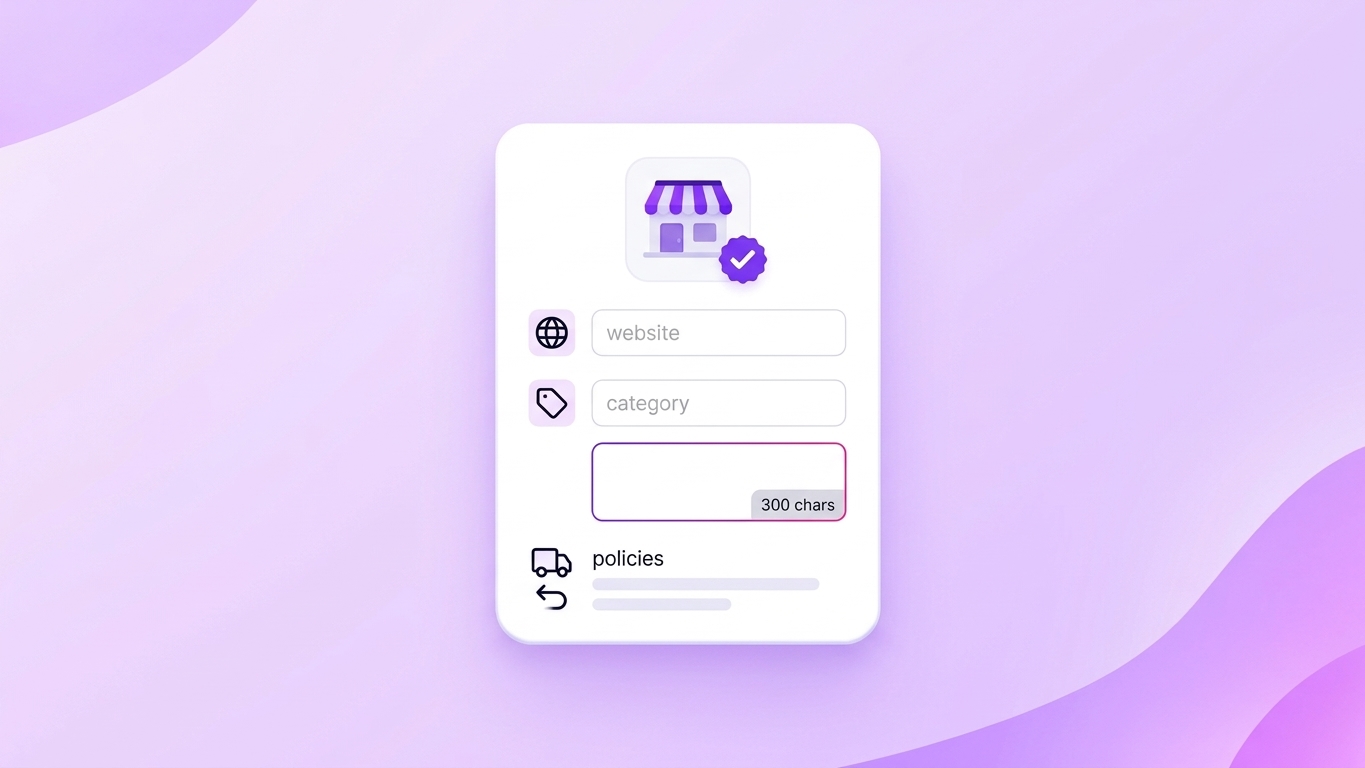
You can edit your website, description, category, logo, cover photo, and delivery and return policies. The description box is short, at around 300 characters in OpenAI’s demo, so make every word count.
Say what you do, who you help and where. Here is an example:
Online shop selling handmade leather wallets and card holders. Free returns within 30 days. Ships worldwide from Manchester.
Compare that with “great products at great prices”. The first tells ChatGPT something it can use. The second tells it nothing. Keep it in line with your website, Google Business Profile, and other listings.
Your Product Feed
If you sell products, you can share a product feed with ChatGPT. That is a file listing your products, prices and stock levels. You can connect Shopify, upload a CSV file (a simple spreadsheet file), or link to an online file that follows OpenAI’s product feed rules.
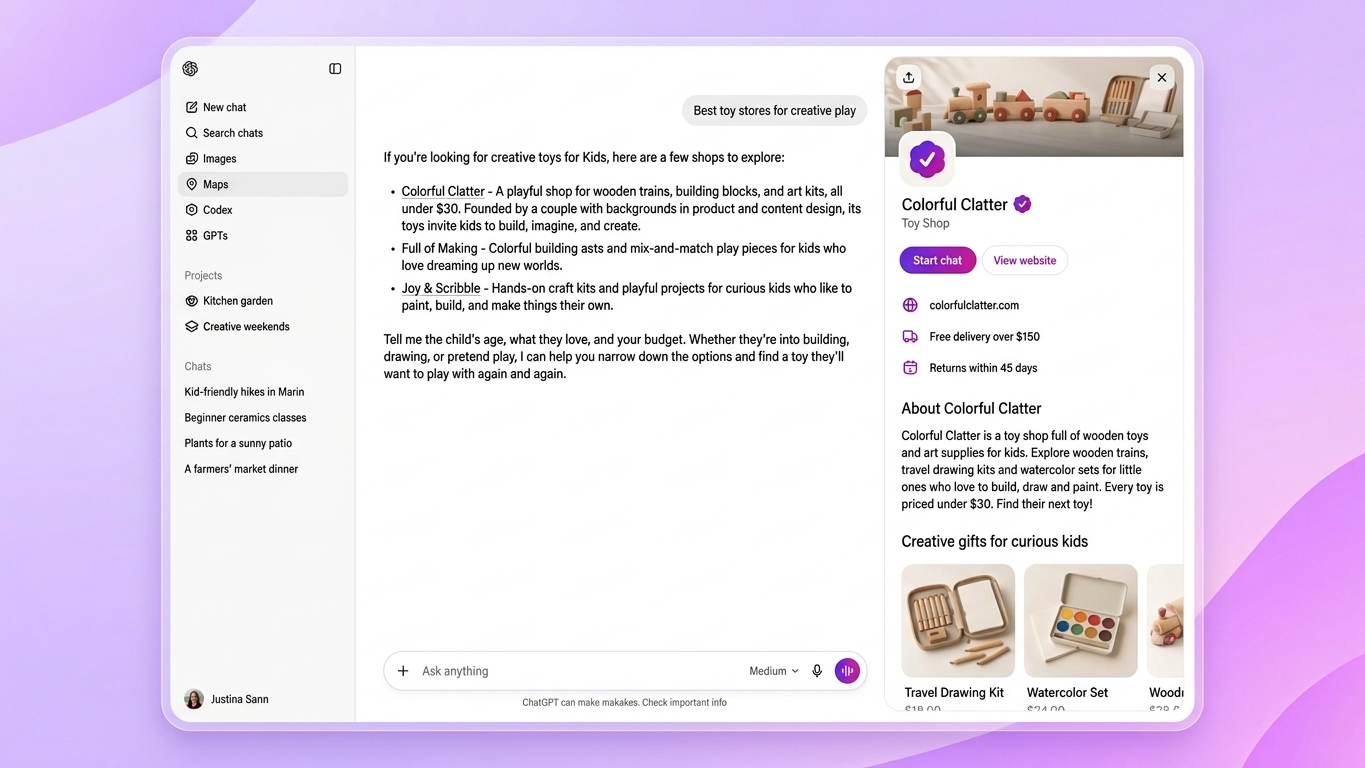
A feed helps ChatGPT get your facts right. It does not guarantee your products will be recommended.
Business Agents
A Business Agent is a chat on your profile. Shoppers can choose to start it and ask about your products and policies. It answers based on the information you give it and links to your website.
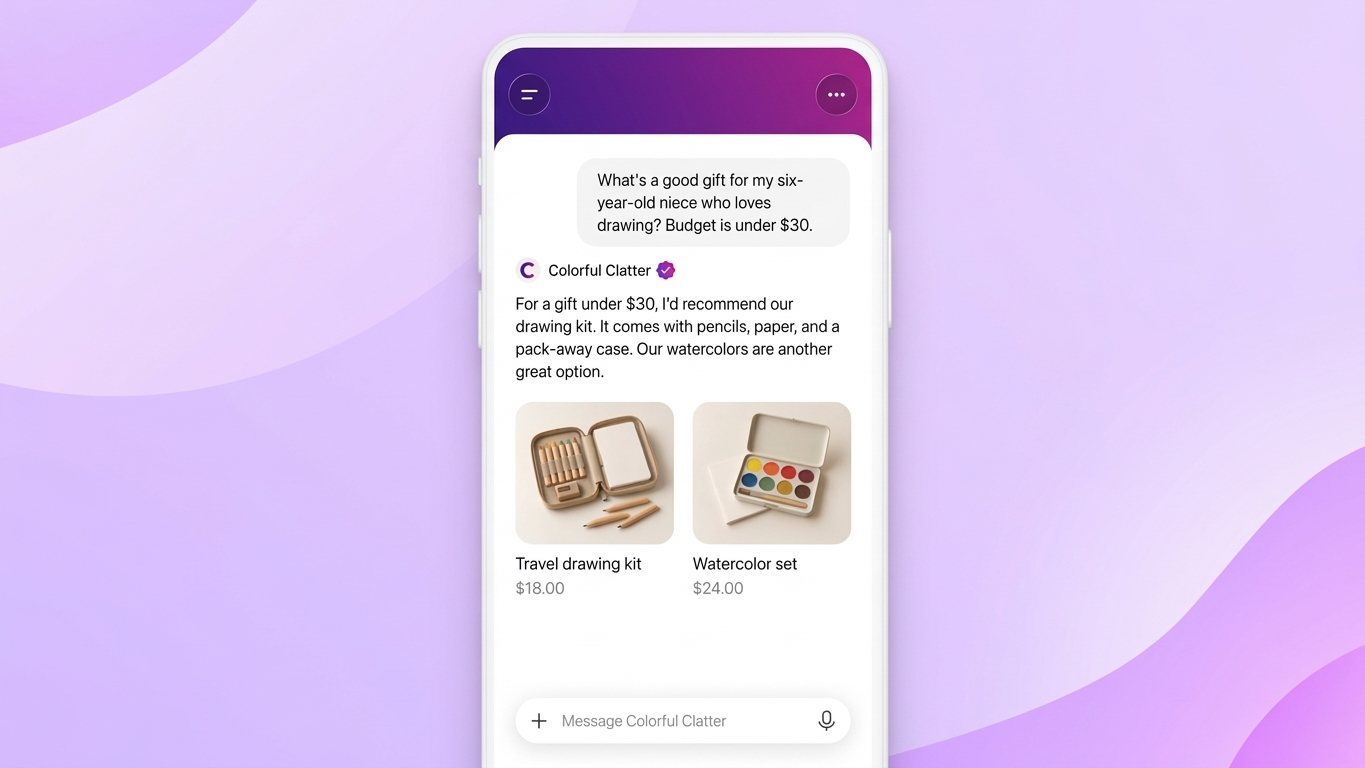
It cannot take payments, book appointments, or look up orders. For now, it is only open to eligible US ecommerce and online service businesses. Verification alone does not guarantee you will get one.
If you are eligible, test your agent before you publish it. Ask the questions real shoppers ask, such as prices, returns and delivery, and one thing you do not sell. If an answer is wrong, fix the information you gave it and test again.
What Business Hub Insights Shows
Insights is the part most marketers are curious about. It shows how ChatGPT has treated your business over the past 28 days. You only see it after your claim and Persona check are approved.
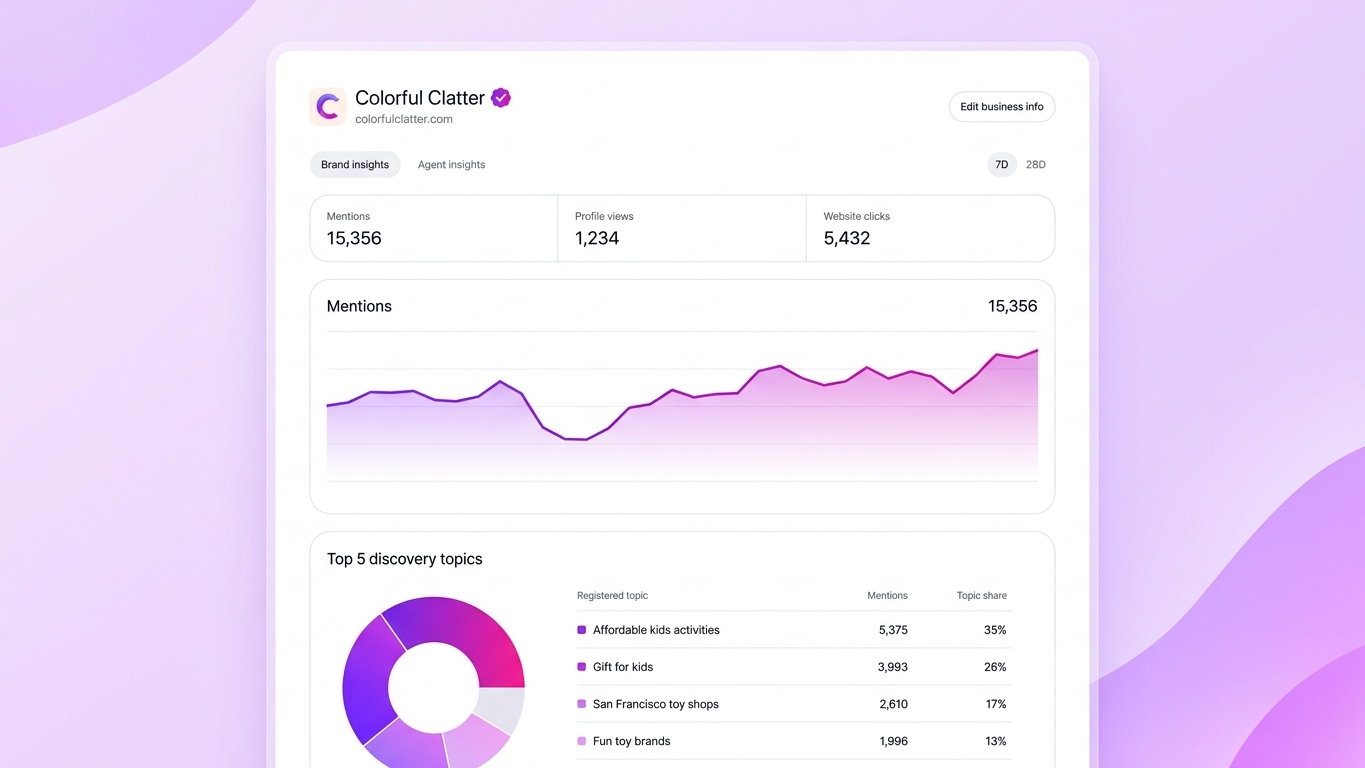
The Four Numbers
| Metric | What it counts |
| Mentions | Times ChatGPT referred to your website (online business) or showed your location (local business) |
| Profile views | How often people open your business profile in ChatGPT |
| Website clicks | Clicks from ChatGPT to your website |
| Discovery topics | Themes from answers that mentioned or cited you |
How Mentions Are Counted
This catches people out. For an online business, ChatGPT must refer to your website for a mention to count. If it only says your brand name, that does not count.
So your number can be lower than the real number of times people talk about you. Tools that count every brand name will often show higher figures.
Why Your Dashboard May Be Empty
A blank tile does not mean zero. OpenAI says numbers appear only when activity exceeds a reporting threshold, but it has not specified what that threshold is.
Small and new businesses may see blanks for a while. Two early dashboards shared online showed 28 and 690 mentions over 28 days, respectively. Yours may be very different, or blank.
How to Use the Numbers
- Save them yourself. Insights only shows a short window, so note the figures down each month.
- Compare with Google Analytics. Business Hub counts clicks. Google Analytics counts visits. They will not match exactly, so look at the trend, not the total.
- Use discovery topics as ideas. If ChatGPT links you to a topic you do not cover well, that is a page worth writing. Our content gap analysis guide shows you how.
What Claiming Won’t Change
It is better to know the limits now than to be let down later.
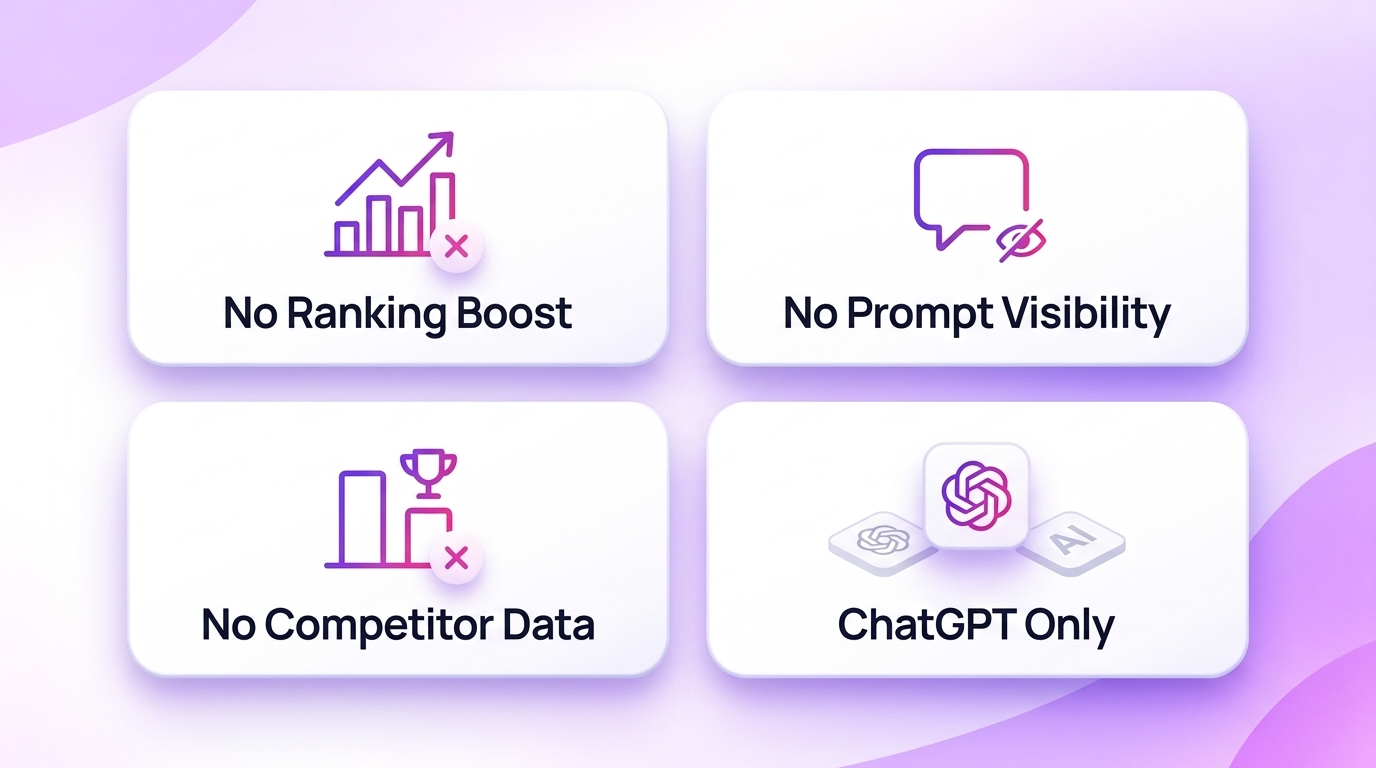
- It will not boost your ranking. OpenAI says claiming does not guarantee more visibility, placement or sales. It also says paid ads do not influence ChatGPT’s own answers.
- You still cannot see prompts. Businesses never see what people typed, or any chat, including chats with their own agent.
- You get no competitor data. There is no share of voice and no comparison.
- It covers ChatGPT only. Google AI Overviews, Gemini, Perplexity and Claude are not included.
- ChatGPT still uses other sources. It may read your website and reviews too, so your profile is one input among many.
In short, Business Hub is a place to fix your facts and watch your numbers. Earning mentions still comes from clear pages, steady business details and good reviews. Our guide to getting cited in AI answers covers that side.
Should You Claim Your Business Now?
If you are eligible, yes. It costs nothing, it lets you correct what ChatGPT says about you, and it lowers the risk of someone else claiming your listing.
Before you start, do three quick things:
- Check that your name, address, phone number and website match everywhere online.
- Make sure your return and delivery policies are accurate, because a published profile cannot be deleted.
- Write down your current ChatGPT traffic in Google Analytics, so you have a starting point.
And keep your expectations realistic. This is a fact-checking and reporting tool, not a growth button.
Ready to Claim Your Listing?
Business Hub is still in beta, and early claims give you more control over how ChatGPT describes your business. Setup involves verification, an identity check and profile review, and small mistakes can be hard to undo.
Our team can handle it for you:
- Find and claim the right listing
- Set up domain, phone or email verification
- Write an accurate business profile
- Prepare your product feed and policies
FAQ About ChatGPT Business Hub
Is ChatGPT Business Hub free?
Yes, for now. OpenAI lists no fee for claiming, and you do not need an Ads account or an Enterprise plan. Sponsoring a Business Agent as a ChatGPT ad is a separate, paid option.
Who can claim a business in ChatGPT?
Owners, or people authorised to act for the business, where ChatGPT is available. Local shops and restaurants can only claim existing US listings at the moment.
Does claiming improve my visibility in ChatGPT?
No. OpenAI says claiming does not guarantee better placement, traffic or sales. It gives you control over the facts you provide, not over ChatGPT’s own recommendations.
Can I see what people asked about my business?
No. You only see counts and grouped themes. Individual prompts and conversations are never shared with businesses.
What if someone already claimed my business?
Open the profile, choose the three-dot menu and select “Dispute ownership”. You will need to verify your identity through Persona to represent the business.
Sources